Tuesday, May 5, 2009

Procedural Spheres in OpenGL ES

OpenGL ES does not have GLU, which is a utility library available in regular OpenGL. Among the many things that GLU provides is a bunch of methods for rendering primitive shapes like cylinders and spheres, which can be really handy. The math behind calculating these shapes procedurally can be a little mind-bending, especially if you're new to the whole 3D thing.

I'm currently working on Part 5 of the OpenGL ES from the Ground Up series, which is on materials. I wasn't happy with using the icosahedron that I'd been using for the first four installments of the series. The interplay between lights and materials on the icosahedron just doesn't show the specular component in a way that's obvious enough. The ideal shape for showing a specular hightlight is, of course, a sphere.

So, I set out to render a sphere in OpenGL ES, which turned out to be nowhere near as straightforward as I thought it might be. Right now, the code is a little rough around the edges, but it works, and allows you to specify a "resolution" in terms of the number of "slices" and "stacks" that make up the sphere. These basically just define how many vertices there are latitudinally and longitudinally. Think of an orange. If you slice it with a knife vertically, those are "slices". If we cut it horizontally, those are "stacks". Well, not exactly, unless your knife curves at just the right angle, but it's good enough analogy.

As you can see from this illustration, the more slices and stacks you have, the smoother your sphere looks. But, the more slices and stacks you have, the more processing power your sphere uses. The number of vertices increases exponentially as you increase the stack/slice count.
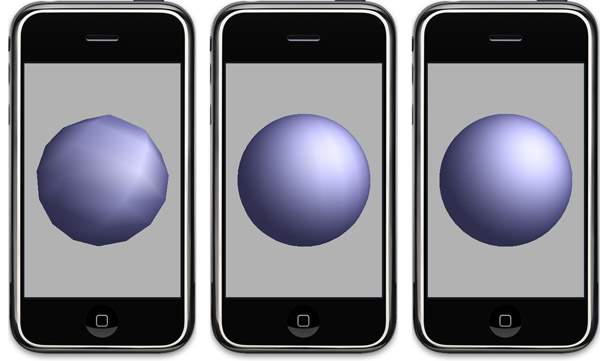
threespheres.jpg

Three spheres created with this code, one with 8 slices and stacks (left), one with 25 slices and stacks (middle) and one with 50 slices and stacks (right).


Right now, this code comes in the shape of a rather scary-looking (but well-commented and quite attractive looking) C-function that takes four handles, two pointers, two unsigned integers, and a float.

                                                            // =========================================================
void getSolidSphere(Vertex3D **triangleStripVertexHandle, // Will hold vertices to be drawn as a triangle strip.
// Calling code responsible for freeing if not NULL
Vector3D **triangleStripNormalHandle, // Will hold normals for vertices to be drawn as triangle
// strip. Calling code is responsible for freeing if
// not NULL
GLuint *triangleStripVertexCount, // On return, will hold the number of vertices contained in
// triangleStripVertices
// =========================================================
Vertex3D **triangleFanVertexHandle, // Will hold vertices to be drawn as a triangle fan. Calling
// code responsible for freeing if not NULL
Vector3D **triangleFanNormalHandle, // Will hold normals for vertices to be drawn as triangle
// strip. Calling code is responsible for freeing if
// not NULL
GLuint *triangleFanVertexCount, // On return, will hold the number of vertices contained in
// the triangleFanVertices
// =========================================================
GLfloat radius, // The radius of the circle to be drawn
GLuint slices, // The number of slices, determines vertical "resolution"
GLuint stacks // the number of stacks, determines horizontal "resolution"
// =========================================================
)


My plan is to wrap this all up in a nice Objective-C class at some point in the not-too-distance future so that it will be easier to use, but I probably won't get to that right away. So, since I figure there must be some other people out there who need spheres or are curious how they might be done, I'm posting a sample project with my rough sphere code that you can look at to see how it works.
Note: I've been advised by somebody much smarter on OpenGL than I am that per-vertex specular highlights "look like total ass" unless you have a super-dense mesh, which you can see in the left-most screenshot above. In general, this code is probably not well-suited for use in a game or application where real-time performance is crucial if you're using strong specular lighting. But it will work quite nicely for showing the effects of lighting and material settings in OpenGL ES, especially when run in the simulator where we have processing power to spare
The sphere is built out of a triangle strip and a triangle fan, so one handle you pass in gets populated by the method with the vertex data for the triangle strip, another with the vertex data for the triangle fan.

Since these two sets of vertices have to be submitted to OpenGL separately, it made sense not to combine them into one array. In order to work with lights and smooth shading, the function also calculates the normals for both of these arrays - which accounts for the other two handles.

The two pointers are to variables that, on return, will identify the number of vertices in the triangle strip vertex array and the triangle fan vertex array.

Finally, there's a GLfloat that's used to specify the size of the sphere, and two GLuints to specify the number of stacks and slices. You'll probably almost always want to use the same number of stacks and slices, but I kept them separate just in case.

To use this function, you need to declare some variables. In the sample projects, they are instance variables of the view controller:

    Vertex3D    *sphereTriangleStripVertices;
Vector3D *sphereTriangleStripNormals;
GLuint sphereTriangleStripVertexCount;

Vertex3D *sphereTriangleFanVertices;
Vector3D *sphereTriangleFanNormals;
GLuint sphereTriangleFanVertexCount;


These values get passed in like so:

    getSolidSphere(&sphereTriangleStripVertices, 
&sphereTriangleStripNormals,
&sphereTriangleStripVertexCount,
&sphereTriangleFanVertices,
&sphereTriangleFanNormals,
&sphereTriangleFanVertexCount,
1.0,
50,
50)
;


You do not have to allocate memory for the vertices or normals. BUT you do have to free the memory when you're done, like so:

    if(sphereTriangleStripVertices)
free(sphereTriangleStripVertices);
if (sphereTriangleStripNormals)
free(sphereTriangleStripNormals);

if (sphereTriangleFanVertices)
free(sphereTriangleFanVertices);
if (sphereTriangleFanNormals)
free(sphereTriangleFanNormals);

Finally, here's how you draw the sphere using the values returned from getSolidSphere():

    glEnableClientState(GL_VERTEX_ARRAY);
glEnableClientState(GL_NORMAL_ARRAY);

glVertexPointer(3, GL_FLOAT, 0, sphereTriangleFanVertices);
glNormalPointer(GL_FLOAT, 0, sphereTriangleFanNormals);
glDrawArrays(GL_TRIANGLE_FAN, 0, sphereTriangleFanVertexCount);

glVertexPointer(3, GL_FLOAT, 0, sphereTriangleStripVertices);
glNormalPointer(GL_FLOAT, 0, sphereTriangleStripNormals);
glDrawArrays(GL_TRIANGLE_STRIP, 0, sphereTriangleStripVertexCount);

glDisableClientState(GL_VERTEX_ARRAY);
glDisableClientState(GL_NORMAL_ARRAY);

That's all there is to it. I'll be using this code in the next OpenGL blog posting so we can talk about lighting and materials, though I probably won't get to that until after the weekend. I'm going away for a long weekend and my wife's not letting me bring my computer.

Let me warn again that this code is probably not a good solution for anything that needs to run fast in realtime on the phone with strong specular lighting. I'll probably add the ability to populate a texture coordinate array to this function at some point, which will make it more suitable to realtime programs. As always, use at your own risk, there are no warranties, yada yada. You know the drill.

Monday, May 4, 2009

OpenGL ES From the Ground Up, Part 1 Addendum: Alphabet Soup

One problem with blog postings is that they are self-edited. For my postings here, I have no external technical review and no copy editing done. Mostly, it's not too much of a problem, as smart people read this blog and quickly point out my errors, and people seem to be pretty forgiving of the occasional grammatical or spelling gaffe.

But, sometimes, the result of this being a one-man production is that I miss something that I really, really should have included. While re-reading part 4, I realized that I used both glLightfv() and glLightf() and it occurred to me that I never explained the naming format for OpenGL function calls. Back in part 1, I went through all the trouble of explaining the different OpenGL datatypes, but I didn't explain how they related to the alphabet soup at the end of the function call.

So, let me rectify this for those of you that haven't figured it out already.

OpenGL calls that don't take any parameters don't have alphabet soup at the end.There is only one version of those methods. Here's an example:

    GL_ENUM error = glGetError();

The same is basically true for methods that take only a specific type of parameter, such as GL_ENUM:

    glEnable(GL_COLOR_ARRAY);

However, the vast majority of OpenGL function calls can be made using more than one dataype. This is much more pronounced in regular OpenGL, where most function calls have at least a half-dozen different variants, allowing you to pass GLshort, GLbyte, GLint, GLfloat, GLDouble, or GLfixed by value or by reference. In OpenGL ES, there's a much smaller subset of function calls and datatypes, so it's not quite as daunting or confusing, however OpenGL ES still follows the same naming convention, so it's a good idea to understand what that alphabet soup means.

The first and sometimes the second letter after the name of the function specify the datatype that this method takes. Here is a chart that explains what each suffix refers to:
  • b    GLbyte
  • s    GLshort
  • i    GLint
  • f    GLfloat
  • ub   GLubyte
  • us   GLushort
  • ui   GLuint
So, glFoof() would expect a glFloat to be passed in, while glFoos() would expect a GLshort.
Note: In regular OpenGL, there might also be a number as part of the suffix. This number would represent the number of that datatype that is needed. So, for example, the function glVertex3f() takes three GLfloats. Since this naming convention is mostly used in direct mode, which OpenGL ES doesn't have, you won't see this naming convention as often in OpenGL ES, however there are a few functions that follow this naming convention like glColor4f(). OpenGL ES doesn't support, for example, glColor3f(), but keeps the number as part of the prefix to maximize compatibility between the two APIs

As you saw back in Part 4, sometimes functions serve a more generic purpose, such as glLightf(). You call this method to set many different attributes of a given light. You use this call to set, for example, the spot cutoff as well as the light's position in 3D space. Spot cutoff requires a single value, but the light's position requires three.

For these functions, there is an additional variant marked by a v at the end of the method name, after the datatype letters. If you need to pass a regular datatype to OpenGL, you don't use this suffix and just pass in the datatype you need by value. But, if you need to provide more than a single OpenGL native datatype (in other words, that list from Part 1), then you have to put the values into an array and pass a pointer to the beginning of that array. When you pass values into OpenGL by reference like this, then you use the function call with the v suffix.

So, back in Part 4, when we told OpenGL the spot cuttoff value ,we used the regular non-v version, like this:

    glLightf(GL_LIGHT0, GL_SPOT_CUTOFF, 45.0);

but, when we passed in the light's position, which takes three GLfloats, we used the v variant and passed in an array, which is exactly the same thing as passing a pointer to the first value of the array:

    const GLfloat light0Position[] = {0.0, 10.0, 10.0, 0.0}; 
glLightfv(GL_LIGHT0, GL_POSITION, light0Position);

I hope this helps anyone who was confused by the function names. At some point, I'll try and integrate this information into part 1, but I since it was kind of an obvious oversight on my part, I wanted to post it.

Saturday, May 2, 2009

setupView: from Part IV Rewritten

I wrote the Part 4 of the OpenGL ES From the Ground Up series using plain arrays of GLfloats. That is the most common way of doing it that you will see out in the wild as it's the most portable, since it doesn't use any data structures not defined within OpenGL itself.

I took the opportunity to rewrite the setupView: method to use the Vertex3D, Vector3D, and Color3D structs we defined back in Part 1. Neither approach is "better", but I thought it might be interesting to see it done a little different way. When I was first learning OpenGL, I found it easier to think in terms of Vertices, Colors, and Triangles, rather than all the various-length arrays of floats. If you're like I was, then you may find this version easier to read and understand.

In addition to use our custom data structures, I also reduced the amount of the ambient light component and moved the light over to the right. I then used the Vector3DMakeWithStartAndEndPoints() to point the moved light at the icosahedron. By moving the light over and having it strike the object at an angle, the effect is a little more dramatic.

-(void)setupView:(GLView*)view
{
const GLfloat zNear = 0.01, zFar = 1000.0, fieldOfView = 45.0;
GLfloat size;
glEnable(GL_DEPTH_TEST);
glMatrixMode(GL_PROJECTION);
size = zNear * tanf(DEGREES_TO_RADIANS(fieldOfView) / 2.0);
CGRect rect = view.bounds;
glFrustumf(-size, size, -size / (rect.size.width / rect.size.height), size /
(rect.size.width / rect.size.height), zNear, zFar);
glViewport(0, 0, rect.size.width, rect.size.height);
glMatrixMode(GL_MODELVIEW);

// Enable lighting
glEnable(GL_LIGHTING);

// Turn the first light on
glEnable(GL_LIGHT0);

// Define the ambient component of the first light
static const Color3D light0Ambient[] = {{0.05, 0.05, 0.05, 1.0}};
glLightfv(GL_LIGHT0, GL_AMBIENT, (const GLfloat *)light0Ambient);

// Define the diffuse component of the first light
static const Color3D light0Diffuse[] = {{0.4, 0.4, 0.4, 1.0}};
glLightfv(GL_LIGHT0, GL_DIFFUSE, (const GLfloat *)light0Diffuse);

// Define the specular component and shininess of the first light
static const Color3D light0Specular[] = {{0.7, 0.7, 0.7, 1.0}};
glLightfv(GL_LIGHT0, GL_SPECULAR, (const GLfloat *)light0Specular);
glLightf(GL_LIGHT0, GL_SHININESS, 0.4);

// Define the position of the first light
// const GLfloat light0Position[] = {10.0, 10.0, 10.0};
static const Vertex3D light0Position[] = {{10.0, 10.0, 10.0}};
glLightfv(GL_LIGHT0, GL_POSITION, (const GLfloat *)light0Position);

// Calculate light vector so it points at the object
static const Vertex3D objectPoint[] = {{0.0, 0.0, -3.0}};
const Vertex3D lightVector = Vector3DMakeWithStartAndEndPoints(light0Position[0], objectPoint[0]);
glLightfv(GL_LIGHT0, GL_SPOT_DIRECTION, (GLfloat *)&lightVector);

// Define a cutoff angle. This defines a 50° field of vision, since the cutoff
// is number of degrees to each side of an imaginary line drawn from the light's
// position along the vector supplied in GL_SPOT_DIRECTION above
glLightf(GL_LIGHT0, GL_SPOT_CUTOFF, 25.0);

glLoadIdentity();
glClearColor(0.0f, 0.0f, 0.0f, 1.0f);
}


You should feel free to play with the light attributes, add additional lights or icosahedrons, and generally just play around to get a feel for how changes will effect your scene. This stuff is conceptually hard to grok, so don't expect it to come overnight (and if it does, count yourself lucky).